Practical guides for every
product
Choose a module below to review its complete configuration guide, or follow the 3-step quick start that applies across all Zyrqen licenses.
Product guide hubs
Focused guides for World of Warships, connected directly to the matching Zyrqen module.
Complete setup walkthrough
From payment confirmation to in-game DirectX 11 overlay in under two minutes.
Download Your Client Archive
After purchasing a license, open your Zyrqen Account (or the delivery link sent to your email), click Download Zyrqen-Naval-Key-1.4.3.zip, and extract all files into a dedicated folder on your PC.
Activate Your Key
Run Zyrqen.exe. Navigate to Key in the left sidebar, paste your 16-character license key, and click Activate. Your remaining days, hours, and minutes will appear immediately.
Launch Overlay & Hotkeys
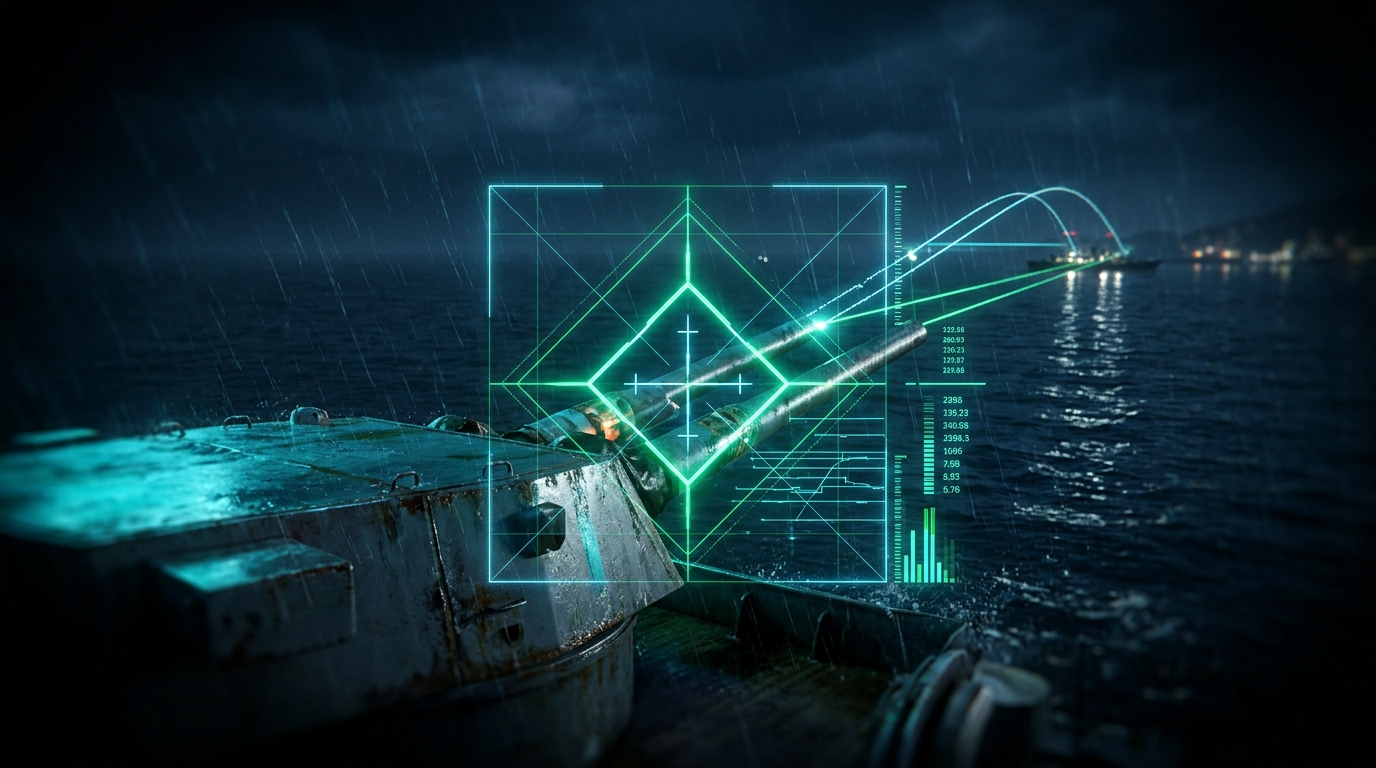
Click Start overlay in the bottom-right corner. Use F11 to toggle the Command Deck menu, Insert to toggle the overlay, Delete to cycle targets, and End to follow game lock. For Aim Lock, enable Prediction point and Aim Lock (hold) in Aim Assist, choose your hold key, lock a ship with X, and hold the chosen key to follow the AP / HE prediction dot. Release it to stop. Aim Lock is off by default. Open Tracking tuning to adjust response, dead zone, speed limit and acquisition radius. After switching ammunition or changing resolution, release and press the hold key again.
Resize Your Command Deck
Drag any edge or corner to resize, double-click the title bar to maximize, and use Appearance to adjust interface scale. Options scroll inside their panels. Press Ctrl+F to search settings; enable Show help for inline descriptions.
Save Your Setup
Use Profiles for Minimal, Balanced or Tactical presets, three saved slots, preference import/export, Undo and defaults. Applying a preset or imported profile leaves Aim Lock off. To keep your existing preferences when updating, close the old client and copy KEEL.settings.json into the new folder.
More Consistent Corrections
Aim Lock preserves small corrections and uses time-based movement limits. Prediction rejects stale samples; torpedoes compensate sample age. Motion histories reset immediately after position jumps. These changes passed offline regression tests; live battle accuracy still depends on game data, motion and dispersion.
Hold or Toggle Fire
In Aim Assist, enable Auto Fire, choose an Aim / fire key and select Hold or Toggle. Lock an enemy ship in the game with X. Hold fires while the key is pressed; Toggle starts on one press and stops on the next. Auto Fire follows the predicted aim point and holds fire only while the target, alignment and weapon state are valid. It supports AP / HE guns and torpedoes; carrier aircraft are not included. Auto Fire starts off when you launch the client.
Native Motion Compensation
In Ballistics, enable Adaptive motion and Native motion compensation. The main AP / HE point and Aim Lock now use verified recent input positions when available. Correction is full through a 5-second flight, fades from 5 to 8 seconds, and preserves the existing solution from 8 seconds onward. Invalid, stale or submerged-target data falls back automatically. Existing preferences are preserved; old profiles may have Adaptive motion off.
The shared trajectory improved median and p90 horizontal position errors at 2, 5, 6 and 7 seconds in three recorded captures. These are offline position forecasts, not measured hit rates or a claim of validation for every ship. Torpedo and submerged-target prediction retain their existing models. F4 remains a separate comparison marker.